
Nothing ruins a live sports match or movie night faster than the dreaded buffering wheel. If your IPTV keeps freezing, stuttering, or loading endlessly, don't worry — this comprehensive guide will walk you through every proven solution to eliminate buffering for good in 2026. From optimizing your internet settings to switching to 5GHz Wi-Fi and using Ethernet, we'll cover it all.
Why Does IPTV Buffer? Understanding the Root Causes
Before jumping to solutions, it's essential to understand why IPTV buffering occurs. Buffering happens when your device can't download stream data fast enough to play it in real time. Here are the most common culprits:
- Slow internet connection: Your download speed can't keep up with the stream bitrate
- Wi-Fi congestion: Too many devices competing for bandwidth on the 2.4GHz band
- ISP throttling: Your Internet Service Provider intentionally slowing streaming traffic
- Weak Wi-Fi signal: Device is too far from the router or walls are blocking the signal
- Overloaded device: Too many apps running in the background consuming resources
- Outdated firmware: Router or streaming device software needs updating
⚡ Quick Diagnosis
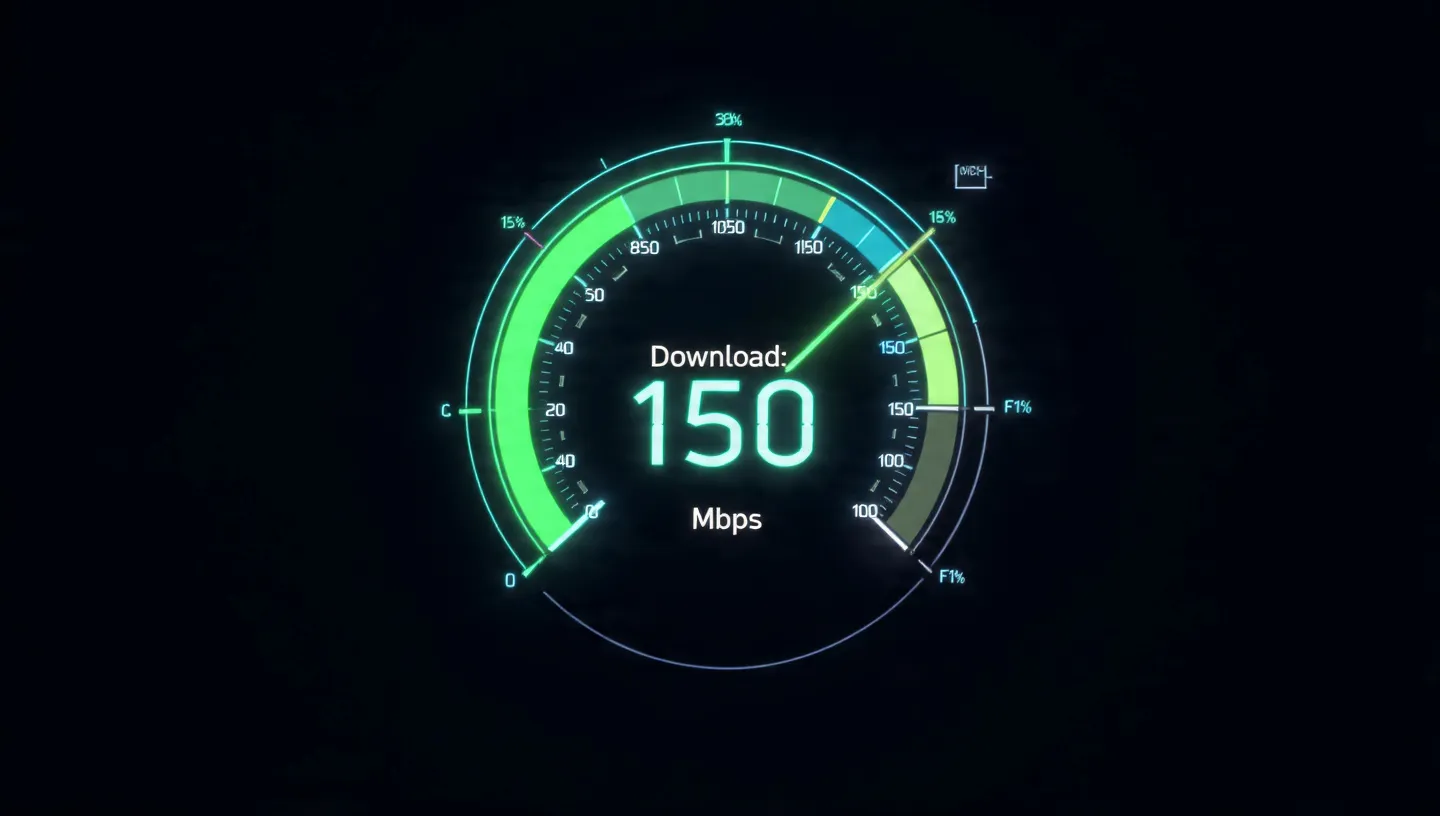
Run a speed test on the device you use for IPTV streaming (not your phone or laptop). If your speed is below 25 Mbps, that's likely the root cause of your buffering issues.
Step 1: Check and Optimize Your Internet Speed
Your internet speed is the single most important factor for buffer-free IPTV streaming. Here's what you need based on stream quality:
| Stream Quality | Minimum Speed | Recommended Speed | Best For |
|---|---|---|---|
| SD (480p) | 3 Mbps | 5 Mbps | Basic viewing, mobile |
| HD (720p) | 8 Mbps | 15 Mbps | Good quality on most TVs |
| Full HD (1080p) | 15 Mbps | 25 Mbps | Optimal TV viewing |
| 4K Ultra HD | 35 Mbps | 50+ Mbps | Premium 4K screens |
How to Test Your Speed Correctly
- Use Fast.com or Speedtest.net on the same device you stream IPTV on
- Run the test multiple times at different hours (morning, evening, weekend)
- Compare the results with the speeds your ISP advertises
- If speeds are consistently low, contact your ISP or consider upgrading your plan
Optimize Your Internet Settings
- Change DNS servers: Switch to Google DNS (8.8.8.8 / 8.8.4.4) or Cloudflare DNS (1.1.1.1) for faster resolution
- Enable QoS (Quality of Service): Prioritize streaming traffic in your router settings
- Limit background downloads: Pause cloud backups, updates, and torrents while streaming
- Upgrade your plan: If you share internet with multiple users, consider a higher-tier plan
Step 2: Switch to 5GHz Wi-Fi — The Game Changer
If you're still using the default 2.4GHz Wi-Fi band, this is likely your biggest problem. The 2.4GHz band is overcrowded — your neighbors' routers, Bluetooth devices, microwaves, and baby monitors all operate on the same frequency, causing constant interference.
| Feature | 2.4GHz Wi-Fi | 5GHz Wi-Fi ⭐ |
|---|---|---|
| Maximum Speed | ~150 Mbps | ~1,300 Mbps |
| Range | Longer (45m+) | Shorter (15-20m) |
| Interference | High (crowded band) | Low (less congested) |
| Best For | IoT devices, long range | Streaming, gaming, IPTV |
| IPTV Performance | Frequent buffering | Smooth, buffer-free |
How to Switch to 5GHz on Your Device
On Amazon Firestick
- Go to Settings → Network
- Forget your current 2.4GHz network
- Look for your network name with "5G" or "5GHz" suffix
- Connect to it using your Wi-Fi password
- Verify connection speed in Settings → Network → your network name
On Android TV / Smart TV
- Open Settings → Wi-Fi
- Select your 5GHz network (usually labeled with "5G" suffix)
- Enter your password and connect
💡 Pro Tip
If you don't see a separate 5GHz network, log into your router settings (usually 192.168.1.1) and enable band splitting. This creates separate 2.4GHz and 5GHz networks so you can explicitly connect your streaming device to 5GHz.
5GHz Wi-Fi Best Practices for IPTV
- Position your router closer: 5GHz has shorter range, keep it within 10-15 meters of your streaming device
- Minimize walls between router and device: Each wall reduces 5GHz signal significantly
- Use a Wi-Fi 6 router: Wi-Fi 6 (802.11ax) routers handle multiple devices better and provide faster 5GHz speeds
- Choose the right channel: Use channels 36, 40, 44, or 48 for least interference
Step 3: Use Ethernet — The #1 Solution for Zero Buffering
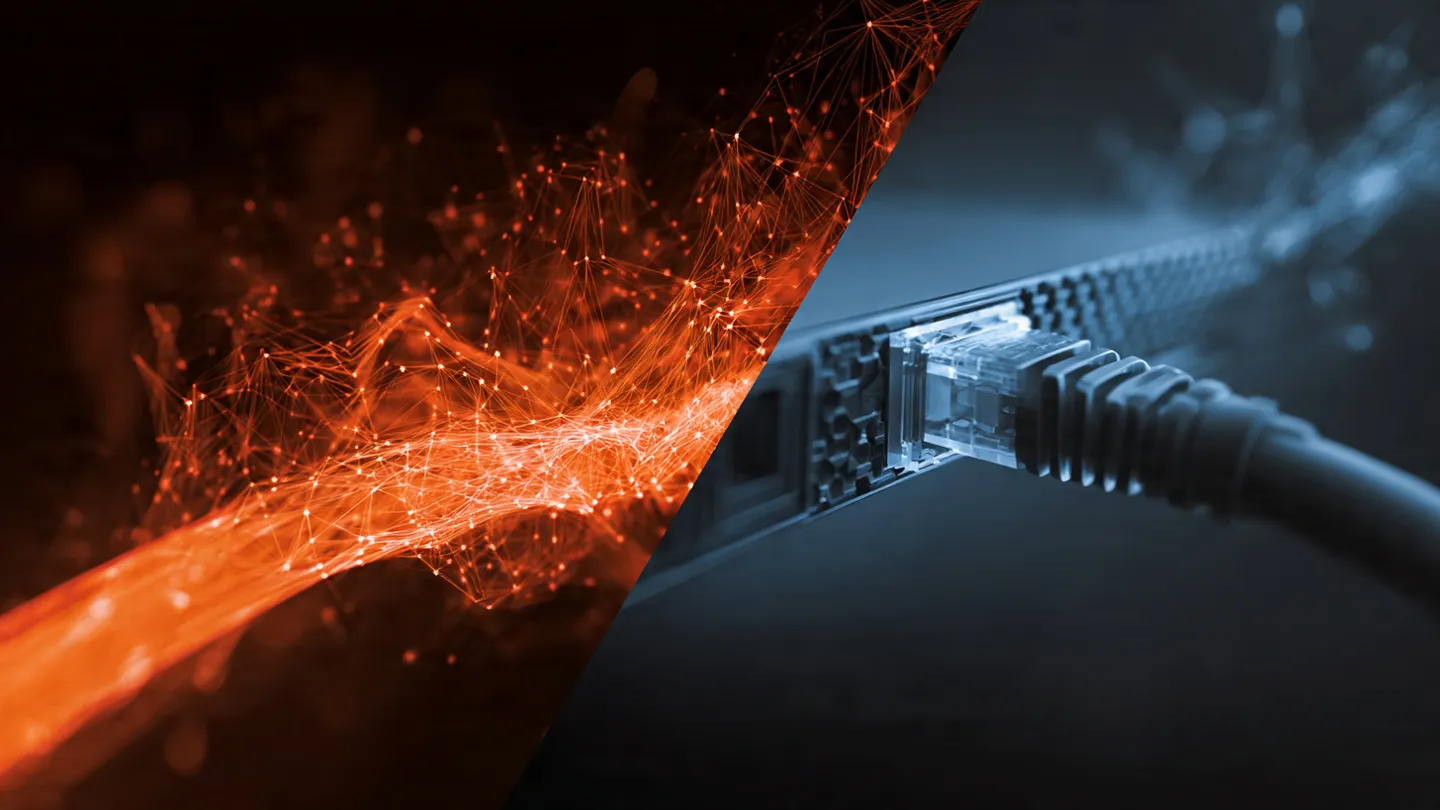
If you want to completely eliminate buffering, there's one solution that works every time: Ethernet (wired connection). No matter how good your Wi-Fi is, a direct wired connection will always be more stable and faster.
Why Ethernet is Superior for IPTV
- Zero interference: No signal drops from walls, appliances, or neighboring networks
- Consistent speeds: Get full bandwidth without fluctuation
- Lower latency: Faster response time means smoother live TV and sports
- More reliable: No disconnections or signal drops during streams
How to Set Up Ethernet for Your Streaming Device
For Amazon Firestick
Since Firestick doesn't have a built-in Ethernet port, you'll need an adapter:
- Purchase the Amazon Ethernet Adapter for Fire TV (~$15)
- Plug the adapter into your Firestick's USB port
- Connect an Ethernet cable from your router to the adapter
- Your Firestick will automatically switch to Ethernet — no setup needed!
For Smart TV / Android TV
- Locate the Ethernet port on the back of your TV
- Connect an Ethernet cable from your router to the TV
- Go to Settings → Network → Select Wired/Ethernet
- Your TV will connect automatically
Can't Run a Cable? Try Powerline Adapters
If your router is in another room, powerline adapters are a brilliant alternative. They use your home's electrical wiring to create a wired network connection:
- Plug one powerline adapter near your router and connect via Ethernet
- Plug the second adapter near your TV and connect to your streaming device
- The adapters pair automatically through your electrical wiring
- Enjoy near-Ethernet speeds without running cables through walls!
Step 4: Optimize Your Streaming Device
Even with perfect internet, your streaming device itself can cause buffering if it's not optimized properly.
Clear Cache and Free Up Memory
- Firestick: Settings → Applications → Manage Installed Applications → Select your IPTV app → Clear Cache
- Android TV: Settings → Apps → Select app → Storage → Clear Cache
- Close background apps: Force-stop any apps you're not using
- Restart regularly: Restart your device at least once a week to free up memory
Update Everything
- Update your device firmware to the latest version
- Update your IPTV player app (TiviMate, Smarters, etc.)
- Update your router firmware through the admin panel
IPTV Player Settings for Less Buffering
- Switch video player: Try VLC, ExoPlayer, or MX Player within your IPTV app — different players handle streams differently
- Increase buffer size: In TiviMate or Smarters, increase the buffer size setting to 3-5 seconds
- Lower stream quality: If HD buffers, try switching to SD temporarily to confirm it's a bandwidth issue
- Use hardware decoding: Enable hardware decoding in player settings for better performance
Step 5: Use a VPN to Bypass ISP Throttling
Many Internet Service Providers (ISPs) deliberately throttle streaming traffic during peak hours. If your speed test shows good results on Speedtest.net but IPTV still buffers, ISP throttling could be the cause.
How a VPN Helps
- Encrypts your traffic so your ISP can't identify IPTV streams
- Prevents selective throttling of streaming protocols
- Can sometimes route you through faster network paths
Recommended VPN Settings for IPTV
- Choose a server close to your physical location for lowest latency
- Use WireGuard protocol — it's the fastest VPN protocol available
- Avoid free VPNs — they're usually too slow for streaming
- Enable split tunneling to only route IPTV traffic through the VPN
Step 6: Optimize Your Router Settings
Your router is the gateway to buffer-free streaming. Here are advanced settings to optimize it:
Essential Router Settings
- Enable QoS: Set your streaming device as high priority
- Change Wi-Fi channel: Use a Wi-Fi analyzer app to find the least crowded channel
- Change DNS: Set DNS to 1.1.1.1 (Cloudflare) or 8.8.8.8 (Google) at the router level
- Disable WMM power save: This can cause Wi-Fi latency issues
- Update router firmware: Manufacturers regularly release performance improvements
Router Placement Tips
- Place your router in a central, elevated position
- Keep it away from microwaves, baby monitors, and Bluetooth devices
- Don't place it inside a cabinet or behind furniture
- Point external antennas perpendicular to each other (one vertical, one horizontal)
The Ultimate Buffering Fix Checklist
Follow this checklist in order for the best results:
| Priority | Action | Impact | Difficulty |
|---|---|---|---|
| 1 | Switch to 5GHz Wi-Fi | 🔥🔥🔥🔥🔥 | Easy |
| 2 | Use Ethernet connection | 🔥🔥🔥🔥🔥 | Easy |
| 3 | Upgrade internet speed | 🔥🔥🔥🔥 | Medium |
| 4 | Change DNS settings | 🔥🔥🔥 | Easy |
| 5 | Clear app cache & restart | 🔥🔥🔥 | Easy |
| 6 | Use a VPN (if ISP throttles) | 🔥🔥🔥🔥 | Easy |
| 7 | Enable QoS on router | 🔥🔥🔥 | Medium |
| 8 | Update all firmware | 🔥🔥 | Easy |
Frequently Asked Questions
Why does my IPTV keep buffering?
IPTV buffering is usually caused by slow internet speeds, Wi-Fi congestion on the 2.4GHz band, ISP throttling, or an overloaded home network. The most common fix is switching to a 5GHz Wi-Fi connection or using Ethernet.
What internet speed do I need for IPTV?
For SD content you need at least 5 Mbps, for HD streams 15-25 Mbps, and for 4K content 50 Mbps or higher. We recommend at least 25 Mbps dedicated to streaming for the best experience.
Is 5GHz Wi-Fi better than 2.4GHz for IPTV?
Yes. 5GHz Wi-Fi offers significantly faster speeds with less interference from other devices. While 2.4GHz has better range, 5GHz is superior for streaming if your device is within reasonable distance of the router.
Does Ethernet reduce IPTV buffering?
Absolutely. Ethernet provides the most stable and fastest connection for IPTV. It eliminates Wi-Fi interference entirely, offering consistent speeds with zero signal drops. It is the number one recommendation for fixing buffering.
Stream Buffer-Free with Apex IPTV
At Apex IPTV, we've optimized our servers for the lowest possible latency and fastest stream delivery. Combined with the tips in this guide, you'll enjoy crystal-clear, buffer-free streaming on any device. Our service includes:
- Low-latency servers optimized for consistent streaming worldwide
- Multiple stream quality options (SD, HD, Full HD, 4K)
- 24/7 customer support to help troubleshoot any issues
- Compatible with all devices — Firestick, Smart TV, Android, iOS
- 12-hour free trial to test our buffer-free streaming
Ready for Buffer-Free Streaming?
Experience smooth, uninterrupted IPTV with Apex. Try free for 12 hours — no credit card required.
Start Free Trial