
Stremio is one of the best free streaming apps available, but if you're using it on an Amazon Firestick or generic Android TV box, you've likely noticed one annoying issue: it doesn't update automatically.
Because Stremio isn't available on the Amazon App Store, you have to "sideload" it. This means manual updates are required to get the latest features, bug fixes, and security patches. In this guide, we'll show you the quickest way to update Stremio in 2026 without losing your addons or library.
💡 Before You Start
You do NOT need to uninstall the old version of Stremio. Installing the new version over the old one will update the app and keep all your data intact!
Method: Using the Downloader App
The easiest way to update Stremio is using the reliable Downloader app. If you already have Stremio installed, you likely have this app too.
Step 1: Get the Downloader App
- Go to the Find or Search icon on your Firestick home screen.
- Type "Downloader".
- Select the orange Downloader app icon and click Download or Get.
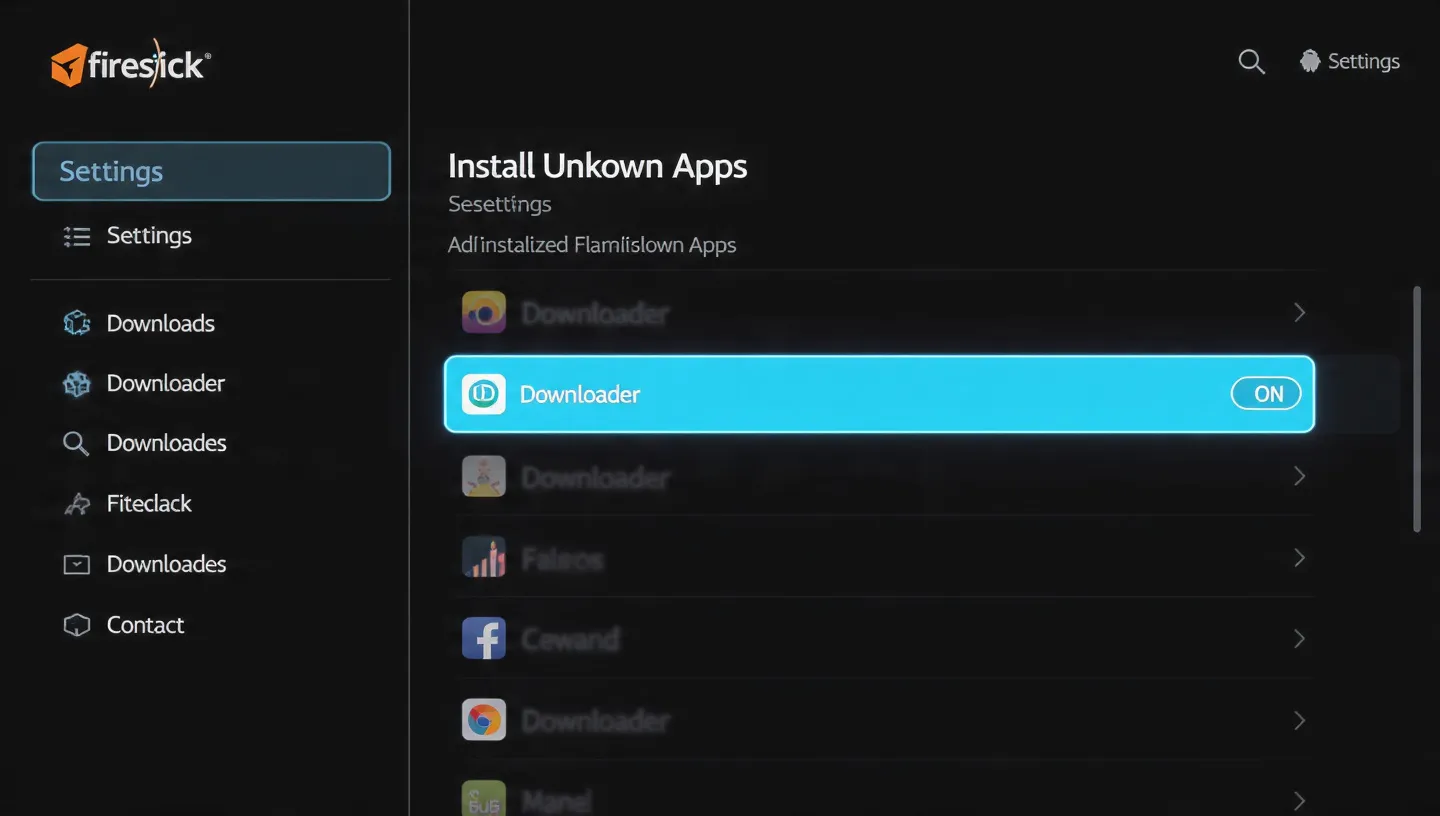
Step 2: Enable "Install Unknown Apps"
If you haven't done this before, you need to allow Downloader to install apps:
- Go to Settings > My Fire TV > Developer Options.
- If you don't see "Developer Options", go to About and click Fire TV Stick 7 times fast.
- Click Install Unknown Apps.
- Find Downloader and turn it ON.
Step 3: Download the Stremio Update
- Open Downloader.
- In the URL box, type this shortcut code: 795281 (This is a direct redirect to the official Stremio downloads page) or type stremio.com/downloads.
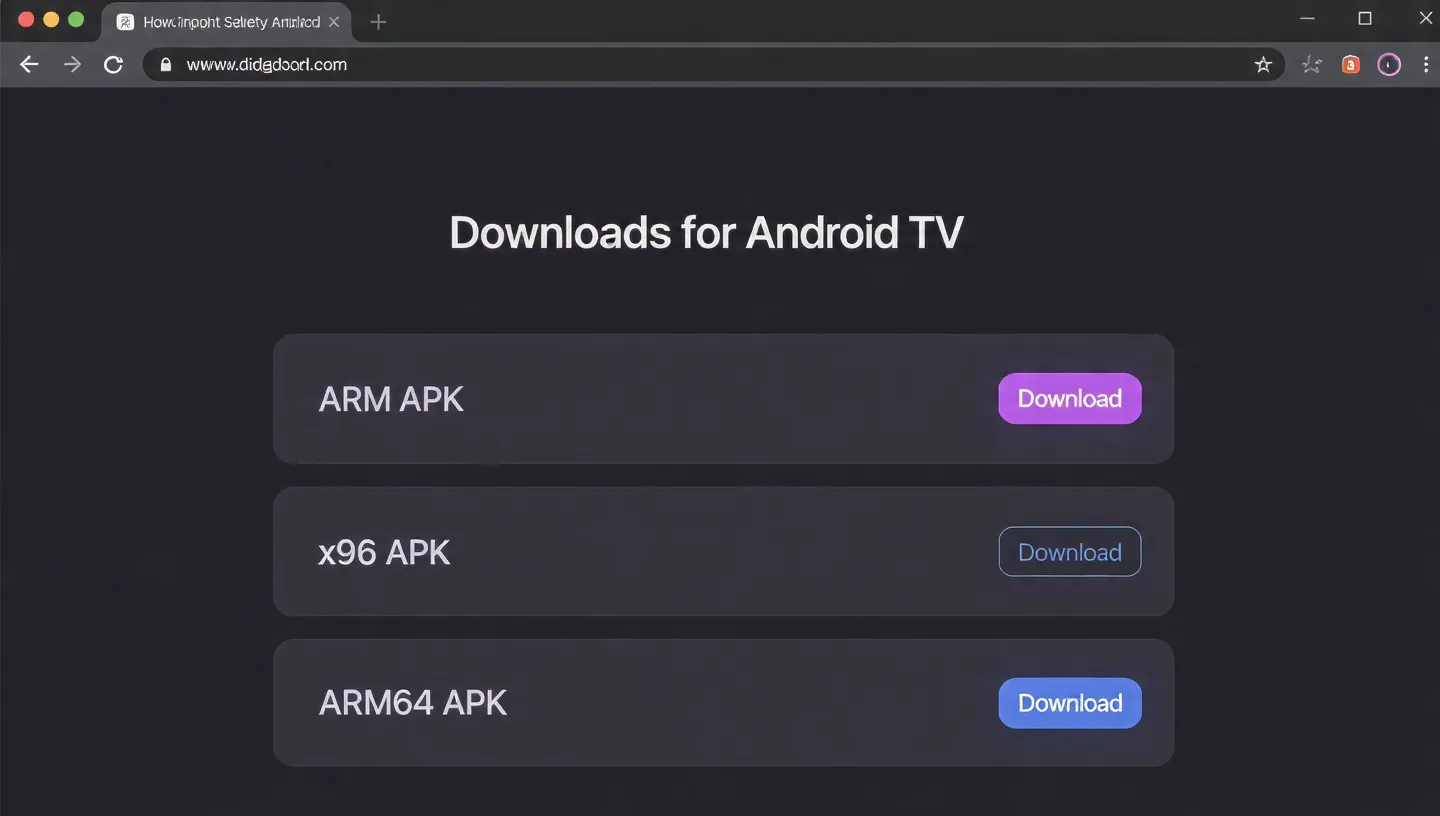
- Scroll down to the "Stremio for Android TV" section.
- Click on the latest version link that says Stremio ARM APK. (Most Firesticks run on ARM/32-bit architecture).
Step 4: Install and Update
- Wait for the file to download.
- Click Install when prompted.
- Android will detect the existing installation and ask if you want to install an update.
- Click Install or Update again to confirm.
- Once finished, click Done (don't open it yet!).
Step 5: Delete the Installation File
To save space on your device, it's best to delete the APK file you just downloaded.
- In Downloader, click Delete.
- Click Delete again to confirm.
Verification
Now you can open Stremio. Go to the app settings or about section to verify that the version number matches the one you just downloaded. All your addons (like Torrentio), library, and watch history should be exactly where you left them.
Looking for a Better Streaming Experience?
While Stremio is great for on-demand content, nothing beats a premium IPTV subscription for live sports and TV channels.
Try Apex IPTV Today!
Get access to 20,000+ live channels and 60,000+ VODs with zero buffering.
Get Free TrialFrequently Asked Questions
Will I lose my addons if I update Stremio?
No. By installing the update over the existing app, all user data is preserved.
Why doesn't Stremio auto-update?
Because it is not hosted on the official Amazon App Store, the device cannot check for updates automatically.
How often should I update?
We recommend checking for an update every 1-2 months, or if you notice a specific bug that needs fixing.