
You don't need an Amazon Firestick or Android box to enjoy IPTV. If you own a Samsung Smart TV (Tizen OS) or LG Smart TV (webOS), you can install IPTV apps directly on your television and start streaming thousands of channels without any additional hardware. Here's exactly how to do it in 2026.
Which TVs Support IPTV Apps?
- Samsung Smart TVs (2017 and newer, running Tizen OS)
- LG Smart TVs (2018 and newer, running webOS 4.0+)
- Sony, Philips, TCL with Android TV / Google TV (use the Play Store method)
- Hisense, Vizio — limited app support, may require casting or external device
📌 Quick Check
Not sure what OS your TV runs? Go to Settings → About This TV and check the software version. Samsung = Tizen, LG = webOS, Sony/Philips/TCL = Android TV or Google TV.
Method 1: Samsung Smart TV (Tizen OS)
Option A: Using Smart IPTV App
- On your Samsung TV, open the Samsung App Store
- Search for "Smart IPTV" (or "SIPTV")
- Install the app and open it — you'll see your TV's MAC address on screen
- On your computer or phone, go to siptv.app/mylist
- Enter your TV's MAC address and paste your M3U URL from Apex IPTV
- Click "Send" — go back to your TV and restart the app
- All your channels will now load automatically!
Option B: Using IPTV Smarters Pro
- Search for "IPTV Smarters" in the Samsung App Store
- Install and open the app
- Select "Login with Xtream Codes API"
- Enter your Apex IPTV credentials:
- Server URL
- Username
- Password
- Tap "Add User" — channels will load within seconds
Option C: Using the Built-in Web Browser
If you can't find any IPTV app on your Samsung TV, you can use the built-in web browser to access web-based IPTV players:
- Open the Samsung Internet Browser
- Navigate to your provider's web player URL
- Log in with your credentials and start streaming
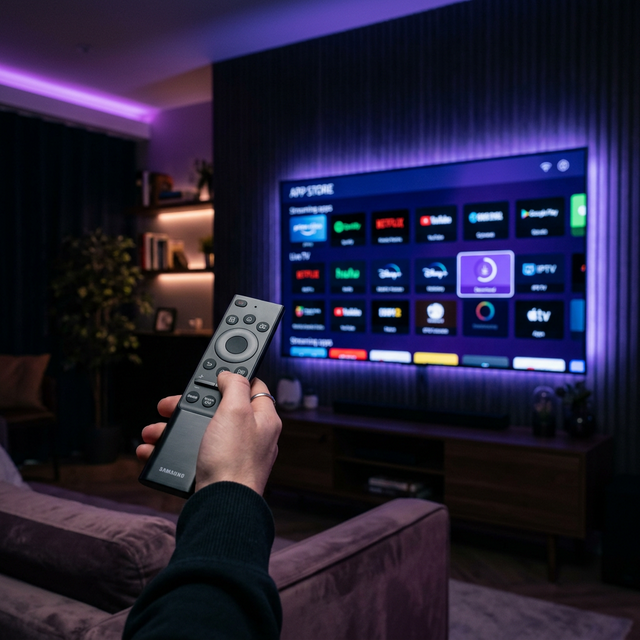
Method 2: LG Smart TV (webOS)
Option A: Using Smart IPTV App
- Press the Home button on your LG remote
- Open the LG Content Store
- Search for "Smart IPTV"
- Install the app and note the MAC address displayed
- On a computer, go to siptv.app/mylist and upload your M3U playlist
- Restart the app on your LG TV — done!
Option B: Using SS IPTV
- In the LG Content Store, search for "SS IPTV"
- Install and open the app
- Go to Settings → General → Get Code
- On your computer, go to ss-iptv.com/users/playlist
- Enter the code and upload your M3U URL
- Go back to the app and refresh — your channels appear!
Option C: Using IPTV Smarters Pro
- Search "IPTV Smarters" in the LG Content Store
- Install and enter your Xtream Codes credentials
- Enjoy a familiar interface with EPG support
Best IPTV Apps for Smart TVs in 2026
| App | Samsung | LG | Best Feature |
|---|---|---|---|
| Smart IPTV | ✅ | ✅ | Easy setup, reliable |
| IPTV Smarters | ✅ | ✅ | Best UI, EPG support |
| SS IPTV | ❌ | ✅ | LG exclusive, free |
| Duplex IPTV | ✅ | ✅ | Premium features, catch-up |
Tips for the Best Experience on Smart TVs
- Use a wired Ethernet connection when possible — Smart TV Wi-Fi chips are often weaker than dedicated streaming devices
- Restart your TV weekly — Smart TVs accumulate memory leaks over time. A quick restart keeps performance snappy.
- Keep apps updated — Check for updates in the App Store regularly for bug fixes and new features
- Use a VPN on your router — Since Smart TVs don't support VPN apps directly, configure a VPN on your router for privacy
- Adjust picture settings — Some TVs apply heavy post-processing. Switch to "Game Mode" or "PC Mode" to reduce input lag
Troubleshooting
- "App not available in my region" — Try changing your TV's region/country in Settings to access more apps
- "Playlist won't load" — Double-check your M3U URL or Xtream credentials. Ensure your subscription is active.
- "Channels buffering" — Switch to Ethernet, or lower quality. Check our buffering fix guide.
- "EPG not showing" — Not all apps on Smart TVs support EPG. Switch to IPTV Smarters or Duplex IPTV for EPG support.
Stream Directly on Your Smart TV
Get your free 12-hour Apex IPTV trial. Works natively on Samsung & LG — no extra hardware.
Start Free Trial