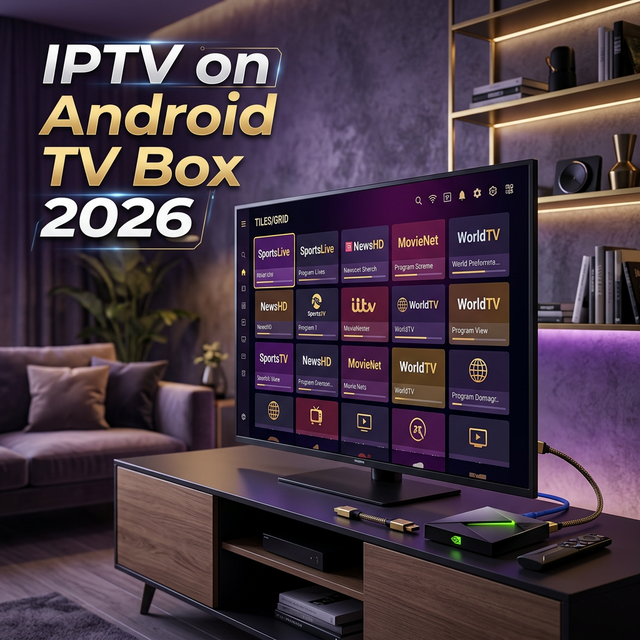
Android TV boxes have become one of the most popular ways to watch IPTV in 2026. They're affordable, powerful, and incredibly versatile. Whether you've got an Nvidia Shield TV Pro, a Mecool KM2 Plus, or a Xiaomi Mi Box, this guide will walk you through everything — from choosing the right device to installing apps and optimising your setup for the best possible streaming experience.
Best Android TV Boxes for IPTV in 2026
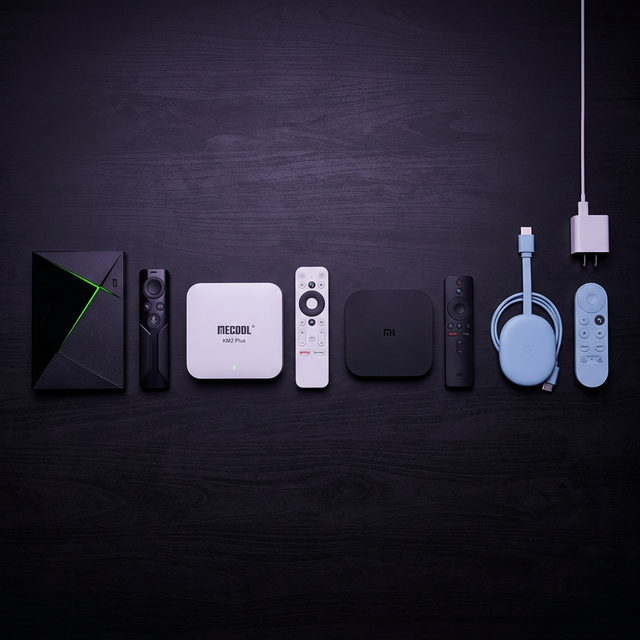
Not all boxes are created equal. Here are the top picks ranked by performance:
| Device | Price | 4K | Best For |
|---|---|---|---|
| Nvidia Shield TV Pro | $199 | ✅ Dolby Vision | Power users & 4K |
| Mecool KM2 Plus | $60–80 | ✅ HDR10+ | Best value |
| Xiaomi Mi Box S | $50–70 | ✅ HDR | Budget pick |
| Google TV Chromecast | $30–50 | ✅ HDR10+ | Ultra budget |
| Formuler Z11 Pro Max | $150 | ✅ 4K | Dedicated IPTV box |
💡 Our Recommendation
For most users, the Mecool KM2 Plus offers the best balance of price and performance. If you want the absolute best experience, go for the Nvidia Shield TV Pro — it handles 4K HEVC streams effortlessly.
Step-by-Step: Setting Up IPTV on Your Android TV Box
Step 1: Connect and Update Your Box
- Connect your Android TV box to your TV via HDMI
- Connect to your Wi-Fi network (or use Ethernet for best results)
- Go to Settings → System → System Update to ensure you're on the latest firmware
Step 2: Enable Unknown Sources (Required for Sideloading)
- Go to Settings → Device Preferences → Security & Restrictions
- Enable "Unknown Sources" for your browser or file manager
- This allows you to install IPTV apps not available on the Play Store
Step 3: Install Your Preferred IPTV App
Here are the best IPTV players for Android TV boxes:
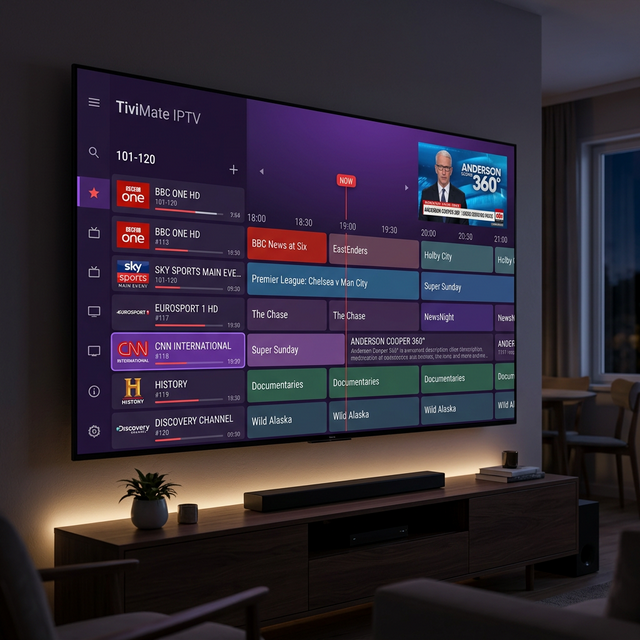
- TiviMate — The gold standard for IPTV on Android. Beautiful EPG, multi-playlist support, catch-up TV. Available on Google Play.
- IPTV Smarters Pro — User-friendly interface, supports Xtream Codes & M3U. Free on Google Play.
- XCIPTV — Lightweight and fast, great for lower-end boxes.
- OTT Navigator — Excellent EPG and customization options.
- Sparkle TV — Simple, clean interface perfect for beginners.
Step 4: Enter Your IPTV Credentials
Once installed, open your chosen app and enter your subscription details:
- For M3U URL: Paste the playlist URL provided by your IPTV provider
- For Xtream Codes: Enter the server URL, username, and password
- Tap Connect/Login and wait for the channel list to load
🔑 Don't Have Credentials Yet?
Apex IPTV provides instant credentials via email after signup. You'll receive your M3U URL, Xtream Codes login, and full setup instructions within minutes. Try our free 12-hour trial to test it out.
Step 5: Configure EPG (Electronic Program Guide)
- In your IPTV app, go to Settings → EPG
- Enter the EPG URL provided by Apex IPTV
- Set auto-refresh to every 12 or 24 hours
- Enjoy a full TV guide showing what's on now, next, and tonight
Optimising Your Android TV Box for IPTV
🌐 Use Ethernet Over Wi-Fi
If your box has an Ethernet port, always use a wired connection. This eliminates Wi-Fi interference and ensures stable, buffer-free streaming — especially important for 4K content which requires 50+ Mbps of consistent bandwidth.
🔧 Clear App Cache Regularly
Over time, IPTV apps accumulate cached data that can slow performance. Go to Settings → Apps → [Your IPTV App] → Clear Cache once a week.
🛡️ Use a VPN
A VPN protects your privacy while streaming and can help avoid ISP throttling. Install a VPN app on your Android box and connect before opening your IPTV player. We recommend NordVPN, ExpressVPN, or Surfshark.
⚡ Adjust Buffer Settings
In most IPTV apps, you can adjust the buffer size. For 4K content, set the buffer to 2–5 seconds for the smoothest experience. Go to your app's Player Settings → Buffer Size to configure this.
Android TV Box vs Amazon Firestick: Which Is Better for IPTV?
| Feature | Android TV Box | Amazon Firestick |
|---|---|---|
| Storage | 16–32GB (expandable) | 8GB (limited) |
| Ethernet | ✅ Built-in on most | ❌ Requires adapter |
| App Freedom | ✅ Full Google Play + sideload | ⚠️ Amazon Store + sideload |
| Processing Power | ✅ More powerful (varies) | ⚠️ Adequate (4K Stick) |
| Price | $30–$200 | $30–$60 |
Verdict: Android TV boxes win for serious IPTV users who want more storage, Ethernet connectivity, and app flexibility. Firesticks are great for budget-conscious users who want a simple plug-and-play solution.
Troubleshooting Common Issues
- "Cannot connect to server" — Double-check your credentials and ensure your internet is working. Try switching to Ethernet.
- Buffering issues — Use a wired connection, lower the stream quality to HD, or increase buffer size. See our full buffering fix guide.
- App crashes — Clear the cache, update the app, or try an alternative player.
- No EPG data — Re-enter the EPG URL and force refresh. Ensure auto-update is enabled.
- Black screen — Switch the player engine in your app settings (VLC, ExoPlayer, or Hardware).
Final Thoughts
An Android TV box paired with a reliable IPTV service is the ultimate cord-cutting setup in 2026. With the right box, the right app, and a stable internet connection, you'll have access to thousands of live channels, massive VOD libraries, and sports from around the world — all for a fraction of what cable charges.
Ready to Get Started?
Try Apex IPTV free for 12 hours on your Android TV box. No credit card required.
Start Free Trial