
TiviMate is widely considered the best IPTV player for Firestick and Android TV. This guide walks you through the complete installation process, from enabling sideloading to configuring your first playlist. Follow these steps and you'll be streaming in under 10 minutes.

Why TiviMate?
TiviMate stands out from other IPTV players because of:
- ✅ Beautiful, TV-optimized interface
- ✅ Best EPG (TV Guide) implementation
- ✅ Smooth channel switching
- ✅ Catch-up TV support
- ✅ Recording capabilities (Premium)
- ✅ Multiple playlist support (Premium)
Prerequisites
- Amazon Firestick (any generation)
- Internet connection
- An IPTV subscription (M3U URL or Xtream Codes)
- About 10 minutes for setup
Part 1: Prepare Your Firestick
Step 1.1: Enable Apps from Unknown Sources
- From the Firestick home screen, go to Settings
- Navigate to My Fire TV
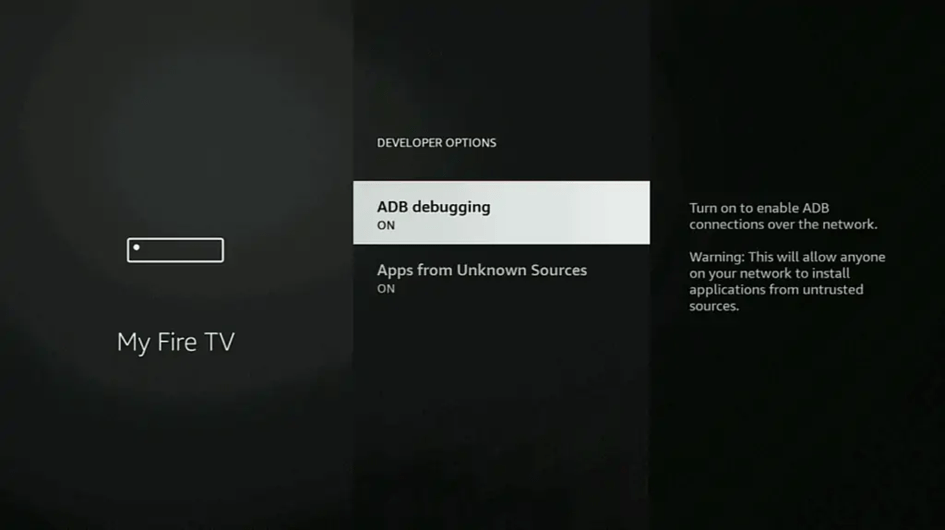
- Select Developer Options
- Turn on Apps from Unknown Sources
- Confirm by selecting "Turn On"
📌 Can't Find Developer Options?
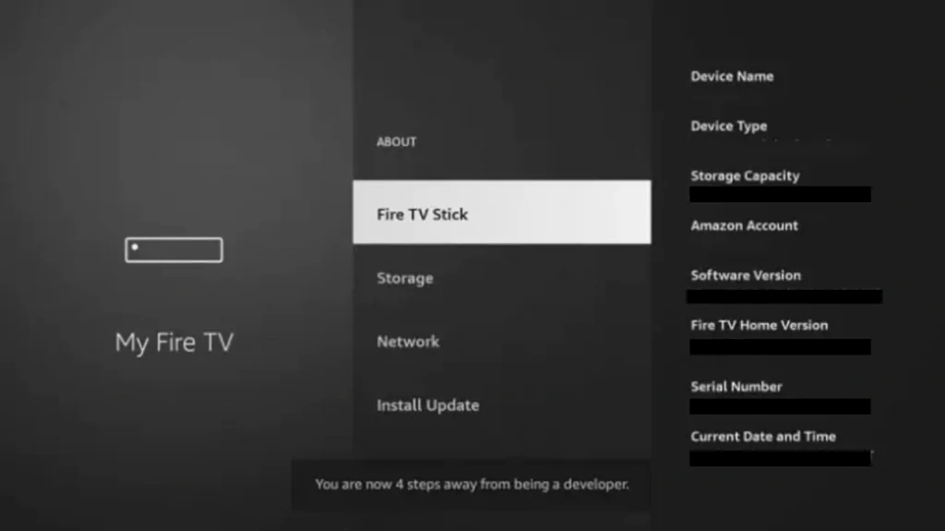
On newer Fire TV devices, go to Settings → My Fire TV → About. Click on "Fire TV Stick" seven times quickly to unlock Developer Options.
Step 1.2: Install the Downloader App
- From the home screen, select the Search icon
- Type "Downloader"
- Select the orange Downloader app by AFTVnews
- Click Get or Download
- Wait for installation to complete
Part 2: Install TiviMate
Step 2.1: Download TiviMate APK
- Open the Downloader app
- When prompted, allow Downloader to access files
- In the URL field, type:
troypoint.com/tivi - Press Go
- The APK file will begin downloading
Step 2.2: Install the APK
- When download completes, the installer will automatically open
- Select Install at the bottom right
- Wait for "App installed" confirmation
- Select Done (not Open - we'll clean up first)
Step 2.3: Delete the APK File
- Back in Downloader, you'll see a prompt to delete the file
- Select Delete
- Confirm by selecting Delete again
This frees up storage space on your Firestick.
Part 3: Configure TiviMate
Step 3.1: Open TiviMate
- Return to the Firestick home screen
- Navigate to "Your Apps & Channels"
- Find and select TiviMate
- On first launch, accept the privacy policy
Step 3.2: Add Your IPTV Playlist
- Select Add Playlist
- Choose your playlist type:
- M3U playlist – If you have an M3U URL
- Xtream Codes – If you have server/username/password
Option A: Adding M3U Playlist
- Select M3U playlist
- Choose Enter URL
- Type or paste your M3U URL
- Press Next
- Enter a playlist name (e.g., "Apex IPTV")
- Press Next
- Add EPG URL if provided, or skip
- Press Done
Option B: Adding Xtream Codes
- Select Xtream Codes
- Enter your server URL (e.g., http://server.com:port)
- Enter your username
- Enter your password
- Press Next
- Name your playlist
- Press Done
Step 3.3: Wait for Channels to Load
TiviMate will now sync your playlist. This may take 1-3 minutes depending on your playlist size. When complete, you'll see your channel categories and can start watching!
Part 4: Optimize Your Experience
Recommended Settings
- Press the Settings icon (gear)
- Navigate through these recommended adjustments:
- Appearance → Guide → Grid → "Rows: 5-7" – More visible channels
- Playback → Buffer size → "Short" – Faster channel switching
- Playlists → Auto-update → "Every 24 hours" – Keep channels current
- EPG → Update interval → "24 hours" – Fresh TV guide
Create Favorites
- While on a channel, press and hold the OK button
- Select the star icon to add to favorites
- Access favorites quickly from the Favorites group
TiviMate Free vs Premium
| Feature | Free | Premium |
|---|---|---|
| Playlists | 1 | Unlimited |
| Favorites Groups | 1 | Unlimited |
| Recording | ❌ | ✅ |
| Scheduled Recording | ❌ | ✅ |
| Catch-up | ✅ | ✅ |
| EPG | ✅ | ✅ |
Premium costs $4.99 for a lifetime license covering 5 devices – excellent value if you plan to use TiviMate long-term.
Troubleshooting
Playlist won't load?
- Verify your M3U URL or credentials are correct
- Check your subscription is active
- Try restarting TiviMate
- Test your internet connection
Channels buffering?
- Check internet speed (need 10+ Mbps for HD)
- Close other apps using bandwidth
- Consider using an ethernet adapter for stable connection
EPG not showing?
- Go to Settings → EPG → Update
- Wait for the update to complete (can take several minutes)
Need an IPTV Subscription?
Try Apex IPTV with TiviMate for the ultimate streaming experience. Start with a free 12-hour trial!
Start Free Trial