
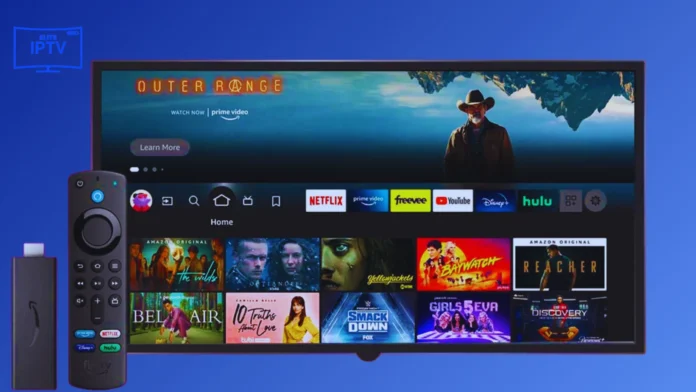
Setting up IPTV on your Amazon Firestick opens the door to thousands of live channels and on-demand content. This comprehensive guide walks you through every step, from preparing your Firestick to streaming your first channel. No technical expertise required!
What You'll Need
- Amazon Firestick (any generation)
- Stable internet connection (10+ Mbps recommended)
- IPTV subscription with credentials
- 10-15 minutes of setup time
Step 1: Get Protected (Optional but Recommended)
Before you start streaming, we highly recommend setting up a VPN to prevent ISP throttling and keep your viewing private.
👉 Check out our guide on the Best Free VPNs for Firestick
Step 2: Prepare Your Firestick
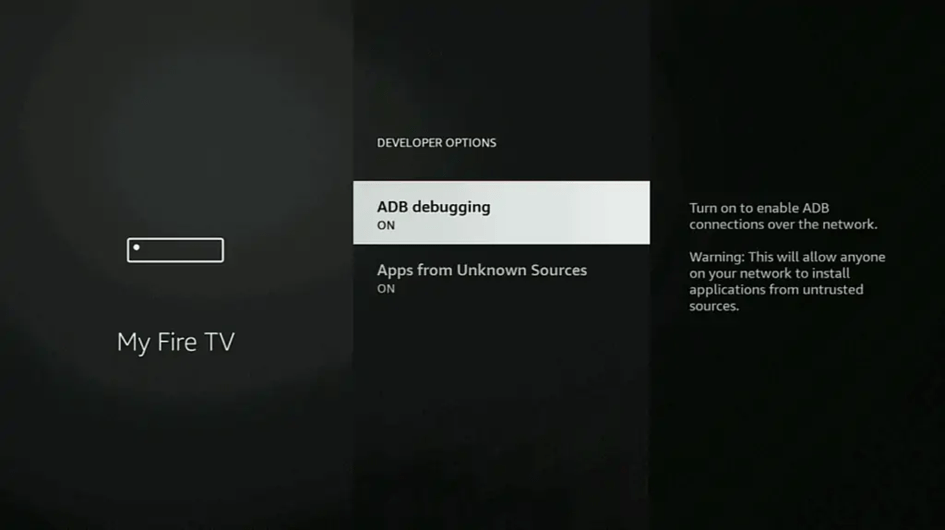
Before installing IPTV apps, you need to enable sideloading:
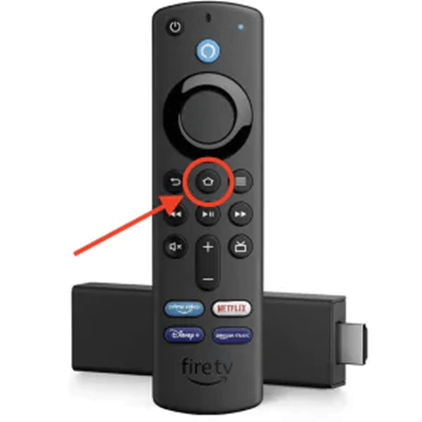
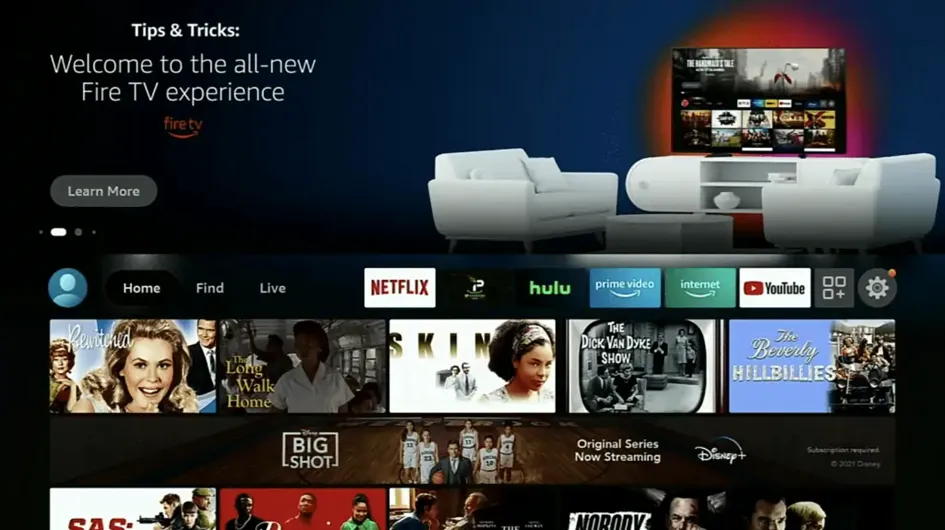
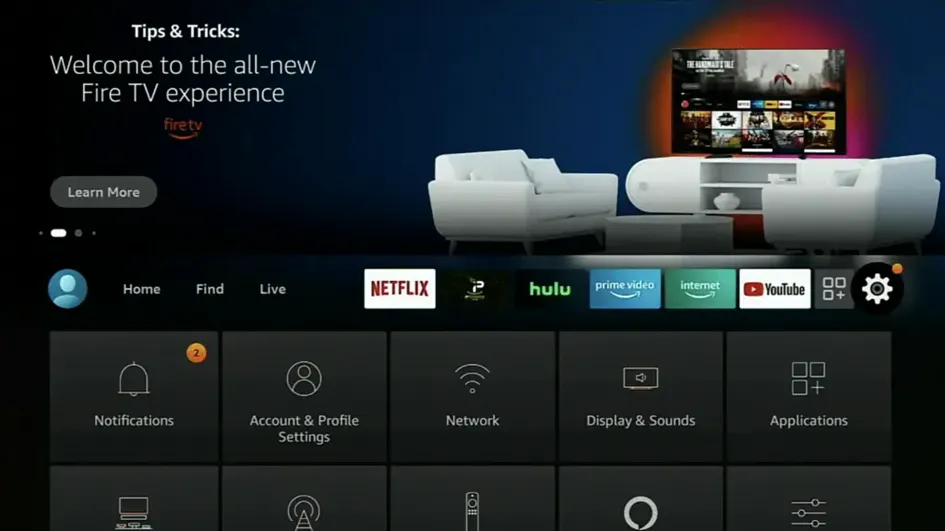
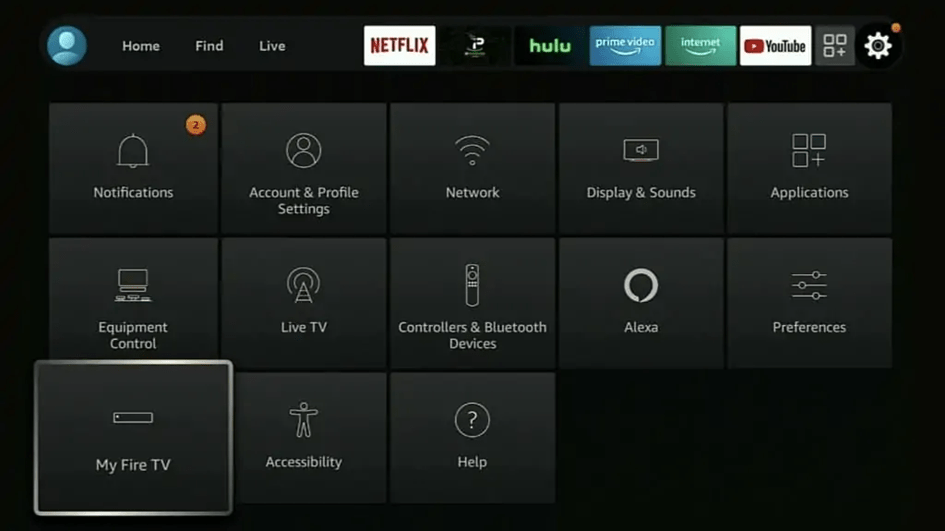
- From the Firestick home screen, go to Settings (gear icon)
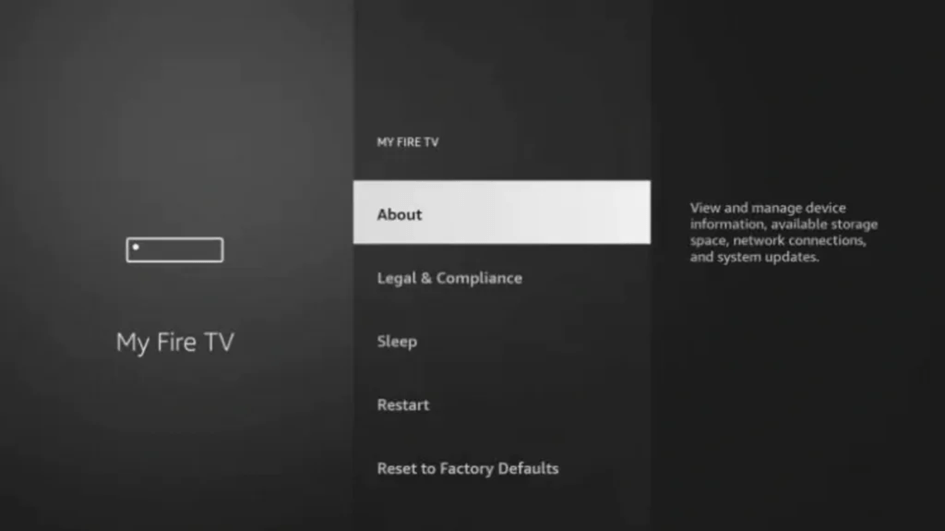
- Navigate to My Fire TV (or "Device" on older versions)
- Select Developer Options
- Turn on "Apps from Unknown Sources"
- Confirm by selecting "Turn On" when prompted
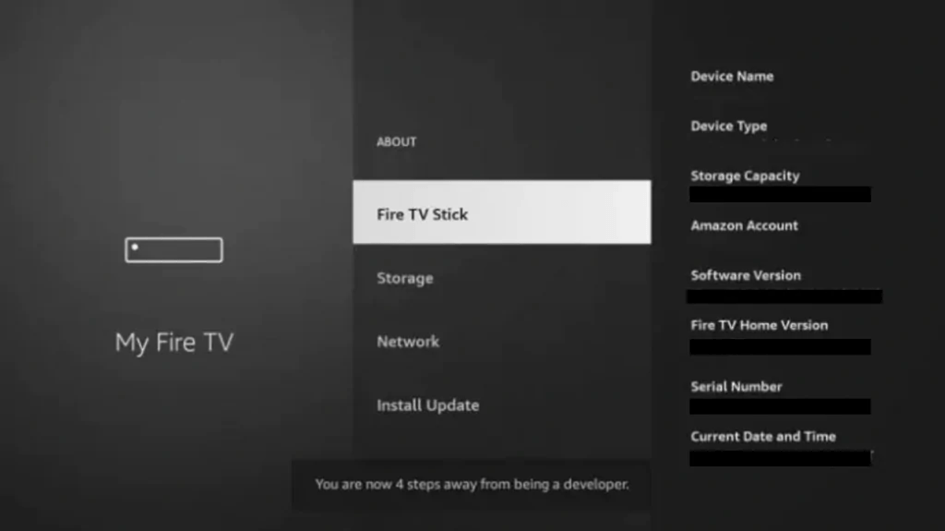
📌 Developer Options Not Visible?
On newer Fire TV versions, go to Settings → My Fire TV → About → Click "Fire TV Stick" 7 times rapidly. This unlocks Developer Options in the menu.
Step 2: Install the Downloader App
Downloader is needed to install IPTV apps not available on Amazon:
- From home screen, select the Search icon (magnifying glass)
- Type "Downloader"
- Select the orange Downloader app by AFTVnews
- Click Get or Download
- Wait for installation to complete
- Select Open
Step 3: Choose Your IPTV Player
Select the IPTV player that best suits your needs:
| App | Best For | Price |
|---|---|---|
| TiviMate | Best overall experience | Free / $4.99 lifetime |
| IPTV Smarters Pro | Easy setup, good UI | Free |
| XCIPTV Player | Multiple playlist support | Free |
| Ibo Player Pro | Clean interface | Free |
Step 4: Install Your Chosen IPTV App
Option A: Using Downloader (Recommended)
- Open the Downloader app
- In the URL field, enter the download link for your chosen app:
- IPTV Smarters Pro:
troypoint.com/smarters - TiviMate:
troypoint.com/tivi - XCIPTV: Search for official download site
- IPTV Smarters Pro:
- Press Go
- When download completes, select Install
- After installation, select Done
- Return to Downloader and select Delete to remove the APK file
Option B: Amazon App Store
Some apps are available directly:
- Search for "IPTV Smarters" or similar in Amazon search
- Select and download if available
Step 5: Configure Your IPTV App
Now you'll add your subscription. You need one of the following from your IPTV provider:
📧 Where are my Login Details?
After you start your Apex IPTV trial or subscription, check your email (including the Spam/Junk folder). You will receive a "Welcome" email containing your Username, Password, and Server URL.
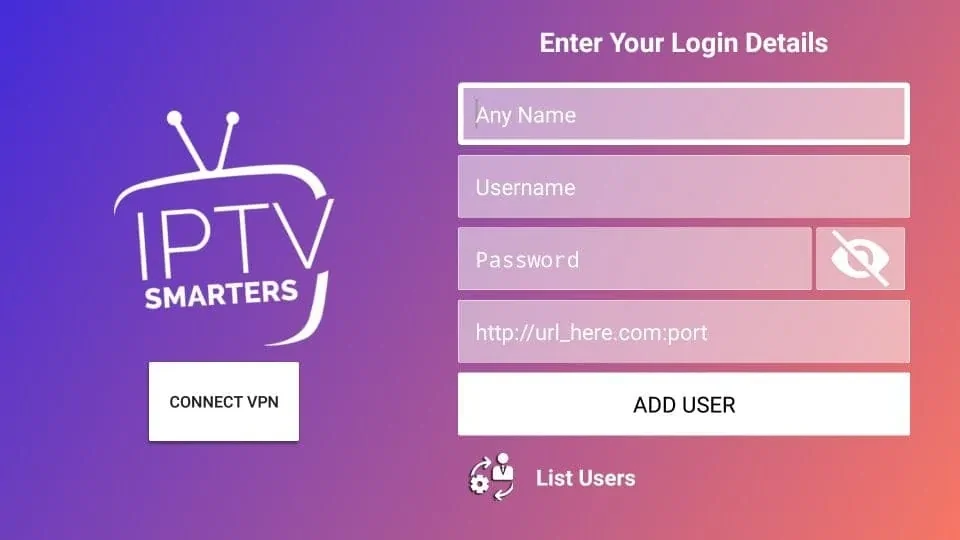
Option 1: Xtream Codes Login
Most providers offer these credentials:
- Server URL: http://yourprovider.com:port
- Username: Your username
- Password: Your password
Option 2: M3U URL
A single URL containing all channel data:
- Format:
http://server.com/get.php?username=xxx&password=xxx&type=m3u_plus
Configuration Steps:
- Open your IPTV app
- Select Add Playlist or Add User
- Choose Xtream Codes API or M3U URL
- Enter your provider's credentials
- Give your playlist a name (e.g., "Apex IPTV")
- Press Add User or Connect
- Wait for channels to load (may take 1-2 minutes first time)
Step 6: Optimize Your Settings
After initial setup, configure these for best performance:
- Video Player: Try both internal and external players to see which works best
- Buffer Size: Increase to 2-5 seconds if experiencing stuttering
- EPG Updates: Set to update every 24-48 hours
- Favorites: Star your most-watched channels for quick access
Troubleshooting Common Issues
Channels Not Loading
- Verify your subscription is active
- Check credentials are entered correctly
- Ensure your internet connection is stable
- Try restarting the app or Firestick
Buffering Issues
- Test your internet speed (use Firestick speed test)
- Close other apps consuming bandwidth
- Try a wired ethernet connection (with adapter)
- Consider using a VPN if ISP is throttling
App Crashing
- Clear app cache: Settings → Applications → Your IPTV app → Clear cache
- Restart Firestick
- Reinstall the app if issues persist
Bonus Tips for Best Experience
- Use Ethernet: A USB ethernet adapter provides more stable streaming than WiFi
- Free Up Space: Uninstall unused apps to keep Firestick running smoothly
- Update Regularly: Keep your IPTV app updated for best performance
- Create Groups: Organize channels into categories (Sports, Movies, News)
Need an IPTV Subscription?
Try Apex IPTV free for 12 hours. We'll send setup credentials within minutes!
Start Free Trial